Gmail Read-Later Bookmarklet
One-click Chrome bookmarklet that emails the current page to yourself through Gmail
View the Project on GitHub artvandelay/gmail-read-later-bookmarklet
Gmail Read-Later Bookmarklet
A tiny Chrome bookmarklet that emails the current page to yourself through Gmail.
It is meant as a low-friction “read later” valve:
- See something distracting.
- Click the bookmarklet.
- Gmail opens with the page title, URL, and optional selected text.
- Click Send.
- Return to the work.
No extension. No backend. No API key. No tracking. No account beyond Gmail.
View as a webpage · View source on GitHub
Bookmarklet
Replace YOUR_EMAIL@gmail.com with your email address.
javascript:(()=>{const to="YOUR_EMAIL@gmail.com";const title=document.title||"Untitled page";const url=location.href;const sel=window.getSelection().toString().trim();const subject=encodeURIComponent(title);const body=encodeURIComponent(`${url}${sel?`\n\nSelected text:\n${sel}`:""}`);window.open(`https://mail.google.com/mail/?view=cm&fs=1&to=${to}&su=${subject}&body=${body}`,"_blank");})();
What the email looks like
If no text is selected:
Subject:
<Page title>

Body:
<URL>
If text is selected before clicking:
Subject:
<Page title>

Body:
<URL>

Selected text:
<Highlighted passage>
Installation in Chrome
- Open any webpage.
- Press Cmd+D (macOS) or Ctrl+D (Windows/Linux). A small popup appears:
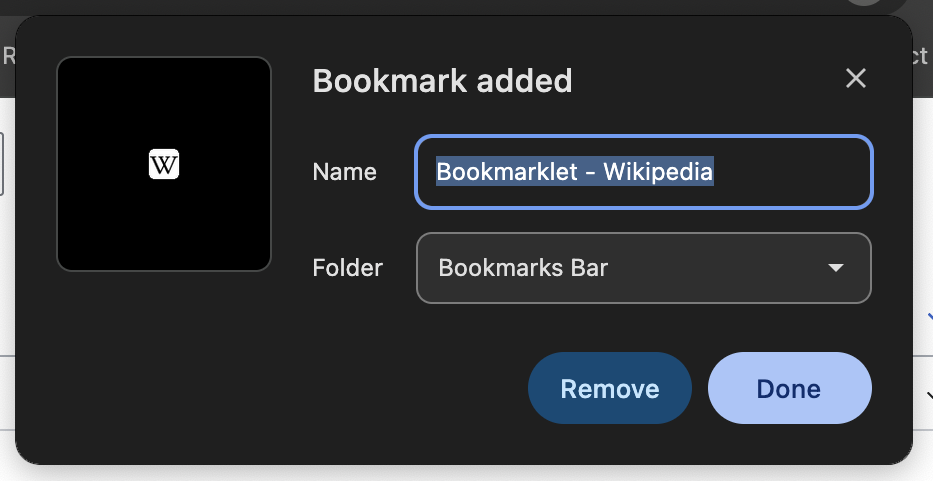
- Click Done to save the bookmark as-is.
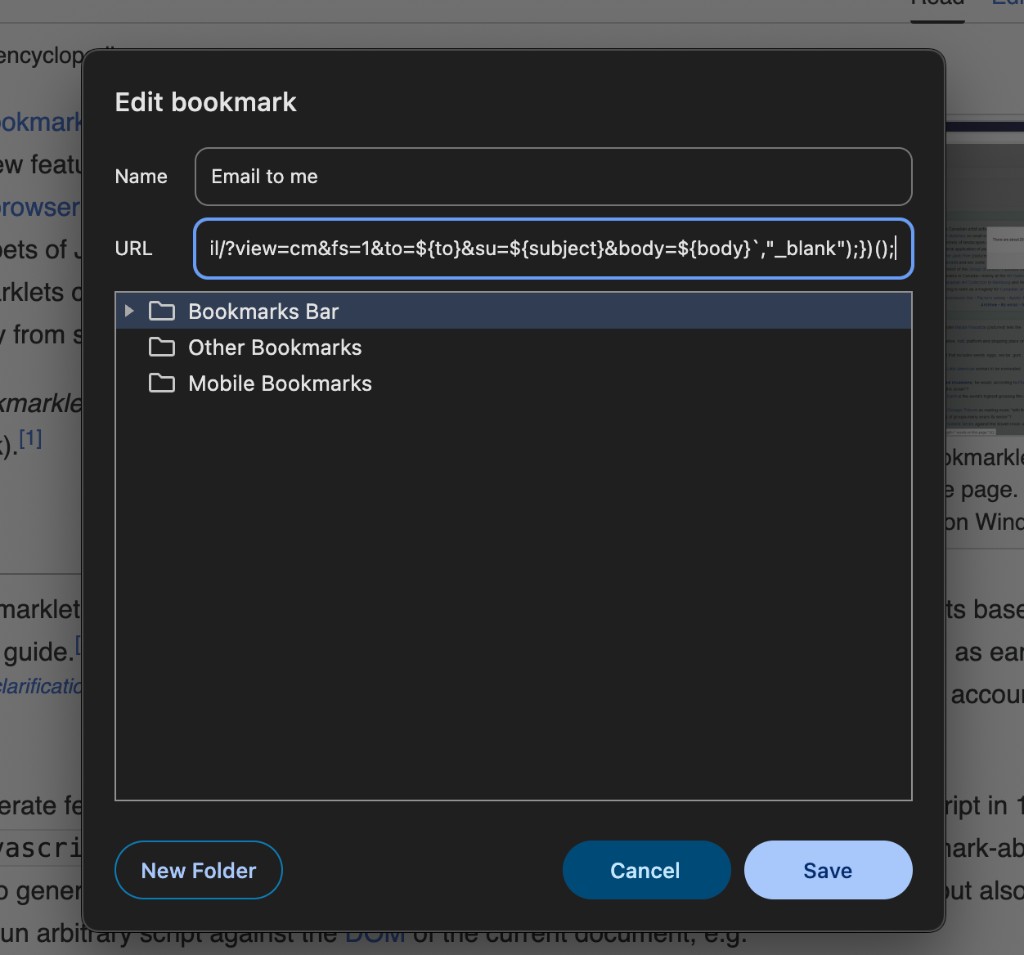
- Find the new bookmark in the bookmarks bar, right-click it, and choose Edit…
- Set the name to Email to me.
- Replace the URL field with the bookmarklet JavaScript above.
- Select Bookmarks Bar as the folder.
- Click Save.
Usage
Basic use:
- Open a webpage.
- Click the bookmarklet.
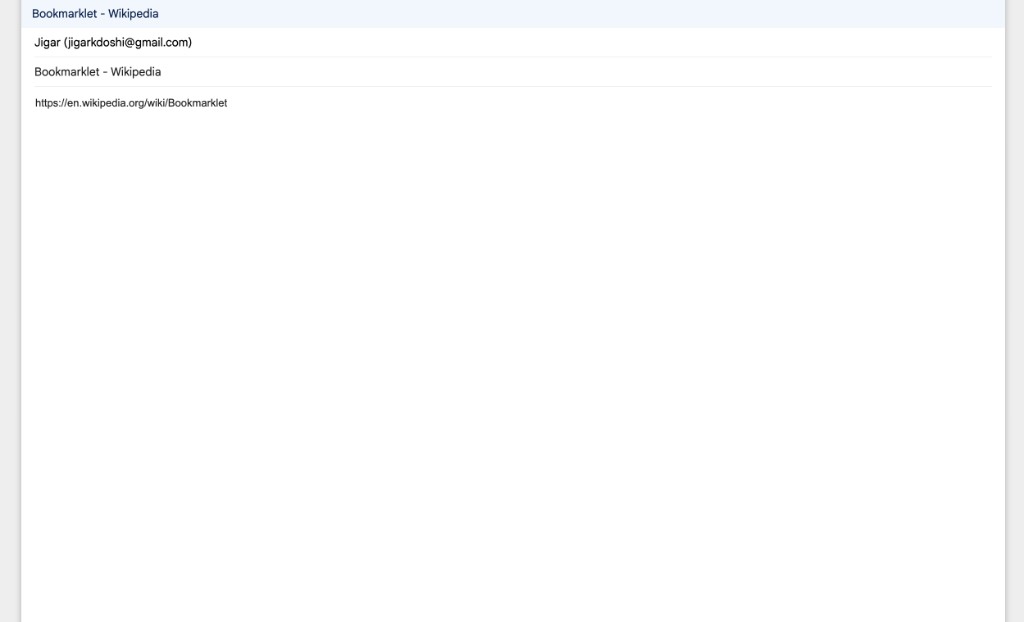
- Gmail compose opens with the page title and URL filled in.
- Click Send.
Better use:
- Highlight the exact paragraph or line that triggered the distraction.
- Click the bookmarklet.
- Gmail compose opens with that selected text included.
- Click Send.
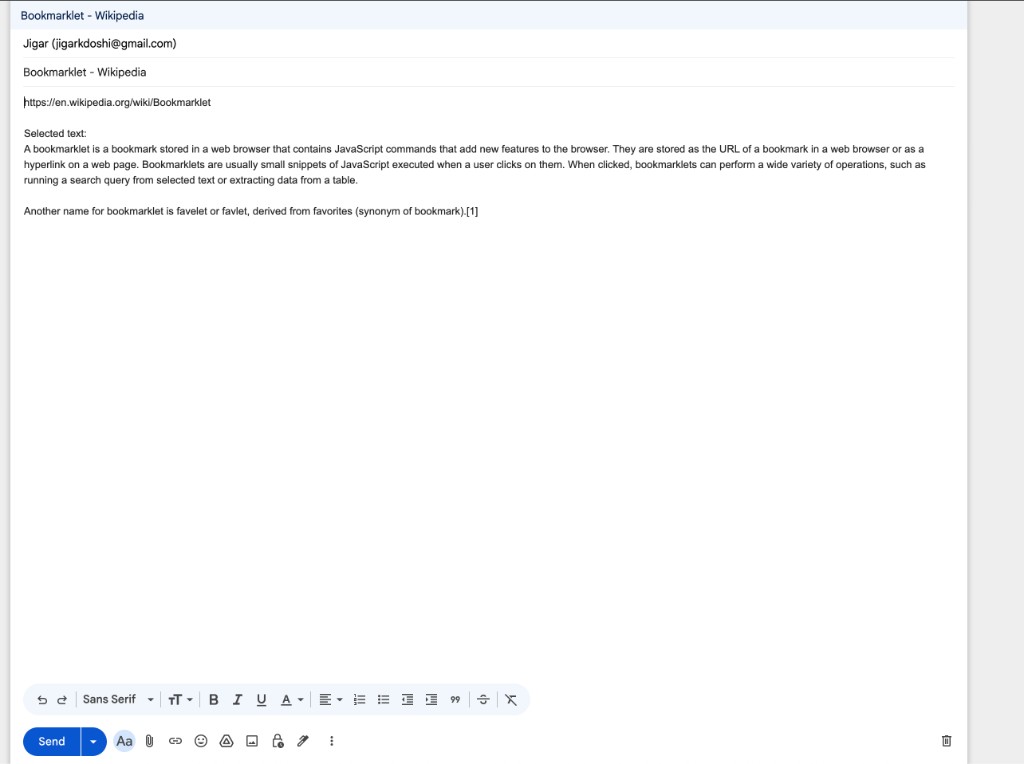
This keeps the capture small and useful without turning it into a full note-taking system.
Why this exists
Most read-later systems become another inbox. This bookmarklet is deliberately dumb.
It does not try to summarize, classify, archive, or organize. It only gets the shiny thing out of the current attention loop.
The self-email becomes a default queue. Whether it is read later or not is secondary. The main value is preserving focus now.
Limitations
This bookmarklet cannot:
- send the email automatically
- attach a PDF
- attach a screenshot
- capture videos or audio
- capture a YouTube transcript unless it is visible/selectable on the page
- run on Chrome internal pages such as
chrome://settings - bypass Gmail or browser security restrictions
Those are features, not bugs. The goal is to stay simple and safe.
Optional future version
A more advanced version could run as a local script or cron job:
- Search Gmail for self-emails.
- Extract the URL and selected text.
- Fetch the page.
- Call an LLM through OpenRouter or a local model.
- Add a summary, label, or forward the processed result.
That should happen outside the bookmarklet so API keys are never exposed in browser JavaScript.
Security note
Do not put API keys inside bookmarklets.
Bookmarklets run as JavaScript in the browser page context. Anything secret placed in them can be exposed. This version intentionally contains no secret except the destination email address.